A 5-minute walkthrough for tracking an AI customer-support pipeline (incoming ticket → classification → suggested response → human approval). Customer support is the highest-volume use case we see (often 5,000+ events per month at small SaaS), so the dashboard math becomes very visible very fast.
Before you start
- An API key
- A support flow already running. Common shapes:
- Email triage in n8n: Gmail → OpenAI classify → branch by category → draft reply
- Helpdesk plugin: Zendesk / Freshdesk webhook → OpenAI / Claude → suggested response in the agent's UI
- Slack-bot: incoming question → search KB → post answer
We use the email-triage shape as the example.
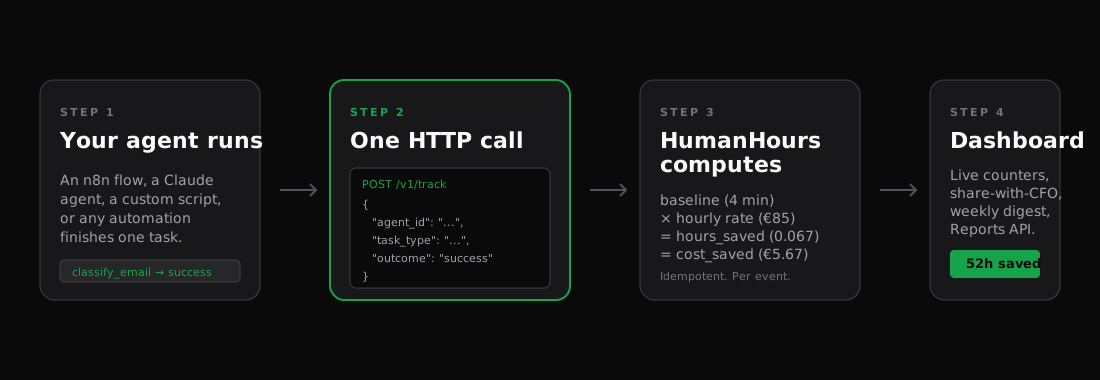
Step 1 · Pick the right task type per step
A real support pipeline has 2-4 distinct steps. Track each one separately so the dashboard breaks down where time is saved:
| Step | Task type | Built-in baseline |
|---|---|---|
| Read ticket, classify category | email_classification |
4 min |
| Detect intent / urgency / sentiment | ticket_routing |
2 min |
| Draft suggested response | customer_email_draft |
8 min |
| Detect duplicates | duplicate_detection |
3 min |
Send one event per step. So a single ticket that gets classified + routed + drafted produces 3 events with the same agent_id and different task_type. Total saved = 14 min per ticket vs human triage.
Step 2 · Wire the calls at each branch
In n8n, drop a HumanHours node after each AI step. Same agent, different task type:
HumanHours node 1 (after classify):
  agent_id:   support-triage
  task_type:  email_classification
  outcome:    success
  metadata:   { ticket_id, category }

HumanHours node 2 (after route):
  agent_id:   support-triage
  task_type:  ticket_routing
  outcome:    success
  metadata:   { ticket_id, route_to }

HumanHours node 3 (after draft):
  agent_id:   support-triage
  task_type:  customer_email_draft
  outcome:    success
  metadata:   { ticket_id, draft_length }
Step 3 · Track outcome correctly
Customer support has more nuanced outcomes than "did the API call work". You probably want:
successif the human-in-the-loop sent the AI's draft (or accepted the classification)needs_reviewif the human modified the draft significantly before sendingfailureif the AI got it wrong and the human had to start from scratch
The branch on outcome is what makes the ROI defensible. A pipeline that produces 10,000 drafts/month with success: 6,000, needs_review: 3,000, failure: 1,000 has a clear story: 60% saved fully, 30% saved partially, 10% needed restart. The dashboard reflects this on the success / fail / review bar at the top of /overview.
Step 4 · Add agent_cost for true ROI
Support pipelines run a lot of LLM calls. To get the net ROI (saved minus what the agent itself cost), send agent_cost in EUR per event:
agent_cost: 0.012 // roughly the marginal LLM cost for one inference
Then the dashboard's net_saved column subtracts agent_cost from cost_saved. Useful when finance asks "what does this AI thing cost us?" — the answer is one column on /reports/cost-saved.
What good numbers look like
For a small SaaS with 200 tickets / day × 14 min average AI-saved per ticket:
TIME SAVED 30D     COST SAVED 30D     EVENTS
1,400h             €119,000           18,000
That is 7+ FTE worth of time, billed at €85 / hour. The numbers add up fast at this volume. Note that the events column counts per-step events (3 per ticket × 6,000 tickets = 18,000), not unique tickets.
Customer-facing reports
Support pipelines are the case where the share-with-CFO link gets used most. Generate it on /reports, drop the link in your monthly QBR deck, and the buyer sees a live view of "the AI handled this many tickets, saved this much time" without needing a HumanHours seat.
Going further
- Multi-language support: separate task types per language (
email_classification_en,email_classification_nl) if baselines differ. English email classification is faster than Dutch in our data because the LLM training corpus is heavier on English. - Quality sampling: opt into
audit_samples(Pro+) to capture the input/output of a random subset of events. The dashboard surfaces them for spot-checking; the auditor sees what the AI actually said. - Webhooks for spike alerts: configure a webhook on
event.trackedfiltered byoutcome=failure, and pipe to your ops Slack. A 5-failure spike gets noticed within minutes.
What to read next
- Track LinkedIn outreach — same idempotency pattern, different baseline.
- Read your dashboard — what success / failure / needs_review actually means.
- Webhooks API — wire alerts on outcome thresholds.